Instagram 'Add Products' Feature — Step-by-Step Tutorial for Tagging Products in Reels

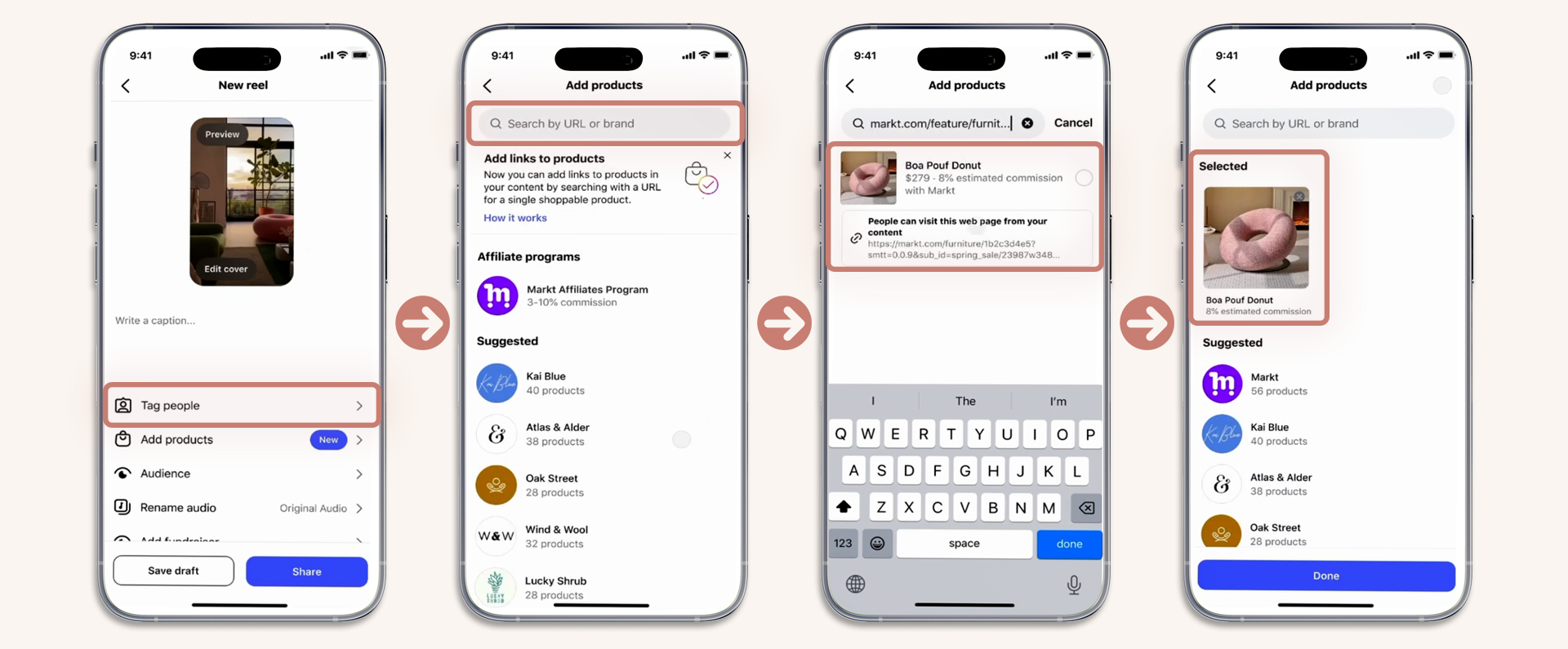
Instagram's new "Add products" button is now appearing for creators on the Reel publish screen. If you can see it — you're in. Here's exactly how to use it, what works, and what to do if it's not showing up yet.
Step-by-Step: Adding Products to Your Reel
Which Links Work?
| Program | Works? | Notes |
|---|---|---|
| Amazon Associates | Yes | Paste your amzn.to short link directly |
| TikTok Shop links | Yes | Use the full product URL |
| Brand direct affiliate | Yes | Any URL with affiliate tracking |
| ShareASale / Impact / CJ | Yes | Use your generated affiliate link |
| LTK / ShopMy | Varies | Some links detected, some not yet |
Troubleshooting
The feature is rolling out gradually. Make sure you have a Creator or Business account (not Personal). Update your Instagram app to the latest version. If it's still not there, it hasn't reached your account yet — Instagram is expanding access weekly.
Try pasting the full product page URL instead of a shortened link. Some URL shorteners strip tracking parameters that Instagram uses to identify the product. If Amazon links don't work shortened, try the full amazon.com URL with your affiliate tag.
Instagram shows estimated commissions for some programs but not all. If it says "commission varies," your affiliate tracking still works — Instagram just can't display the rate. Check your affiliate dashboard for actual earnings.
Pro Tips
- Show the product in the first 3 seconds of your Reel — the tag is useless if people scroll past
- Stick to 1-3 products per Reel for best conversion — don't overload with 30
- Add a verbal call-to-action: "tap the product link to shop"
- Always disclose: add #affiliate or #ad to your caption
This article is for informational purposes. Some links on this site are affiliate links.